

Available Options
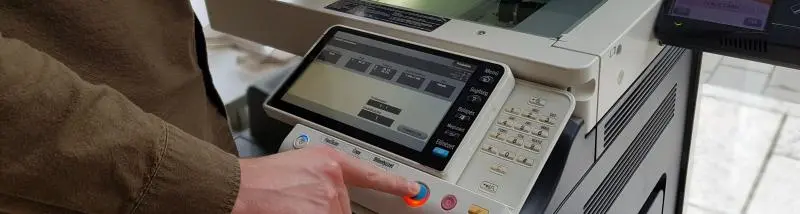
University members with a valid UniPass card can print, photocopy and scan using the multifunction printers (MFPs) located in the library reading areas.
Instructions for using the MFP devices are displayed next to each machine.
Copies of library materials may only be made in full compliance with the applicable copyright legislation.
Requirements
To use the MFP devices, you must have:
- a valid library membership;
- an active UniPass card;
- sufficient printing credit. Service charges are deducted from your available balance. Printing credit can be topped up at the Information Desk of the Life and Natural Sciences Library.
Price List
| Service | Size | Type | Sides | Prices (HUF) |
| Photocopying / Printing | A4 | Black & White | Single-sided | 8 |
| Double-sided | 12 | |||
| Colour | Single-sided | 24 | ||
| Double-sided | 44 | |||
| Photocopying / Printing | A3 | Black & White | Single-sided | 22 |
| Double-sided | 36 | |||
| Colour | Single-sided | 48 | ||
| Double-sided | 88 | |||
| Scanning | Up to A3 | - | - | 24 |
Photocopying
- The MFP devices allow you to make black-and-white or colour copies up to A3 size, in both single-sided and double-sided formats.
- To start copying, tap your UniPass card on the terminal attached to the machine and select the desired function.
- Operating instructions are available next to each device.
Printing from Library Computers
When printing from a library computer:
- Select the SafeQ printer.
- Choose the required print settings.
- Send your document to print.
Your print job can then be released from any MFP device in the library.
  |
Please note: To use the library computers, you must log in with your eduID credentials. |
Online Printing
DEENK's cloud printing service allows you to print uploaded files using the MFP devices in the Life and Natural Sciences Library.
- Open http://safeq.lib.unideb.hu/m.
- Log in using your eduID account.
- Click "Upload New Print Job" and upload the document you wish to print.
| |
Please note: Print settings cannot be changed after uploading. Your document will be printed exactly as uploaded. For example, if you upload a colour document, it will be printed in colour. |
Refresh the page and click "Manage Print Jobs" to view your submitted documents.
- Click a document to preview it.
- Click "Delete Print Job" to remove it.
- Visit any available MFP device to release and print your document.
|
Please note: Online printing is available only from the University network (University IP address). |
Scanning
The MFP devices support scanning:
- up to A3 size;
- up to 600 × 600 dpi resolution;
- in PDF, TIFF or JPG format.
The maximum file size is 10 MB.
Scanned files are automatically sent to the email address registered with your library account.
Operating instructions are displayed next to each machine.
|
Please note: Your scanned document can only be delivered if your registered email address is up to date. Please check and update your library account information regularly. |
